Review platform AI changes on a fixed weekly loop: pull the list of what each platform added, compare it to the creative you approved, sample the ones that matter, decide keep or turn off, log the decision, and roll back what fails. Platforms add or adapt ad elements on their own, and the tools for seeing those changes differ by platform. A routine makes sure someone looks at them before they run for a month.
What should you know before you start?
- Google shows its additions, with a filter. Google's help page on account-level automated assets says to filter the Assets report by "Added by" and check "Google AI."
- Meta stores enhancements as settings you can read. Meta's Advantage+ Creative docs say each feature takes an OPT_IN or OPT_OUT status, and a GET request on creative_features_spec returns the final configuration.
- OpenAI offers a switch, not a change log. Its creative enhancements help article says enhanced versions can be published automatically and points advertisers to Ads Manager reports. The version I read does not describe a history view.
- None of this needs a new tool. It needs a list of what you approved, a time slot, and one person who owns the review.
Why review what the platform changed at all?
Because you approved one ad and the platform may be running another. That is not a complaint. These features are built to adapt your ads to the person and the placement. But an adapted ad still carries your brand, your price, and your claims.
Each platform describes its own changes differently:
- Google says account-level automated assets are created automatically and shown when it predicts they will improve results. The page lists types such as dynamic sitelinks, dynamic callouts, dynamic image assets, and automated promotions.
- OpenAI says enhancements can include new or updated headlines and descriptions, resized images, optimized destination URLs, and translation. It also says you do not need to approve each enhanced version before it is published.
- Meta's docs describe features such as templates, touch-ups, and text optimizations for single image and single video ads.
The question is not whether the change is good on average. It is whether you would have signed off on it. A weekly review answers that for the changes that touch the most spend.
What does the weekly routine look like?
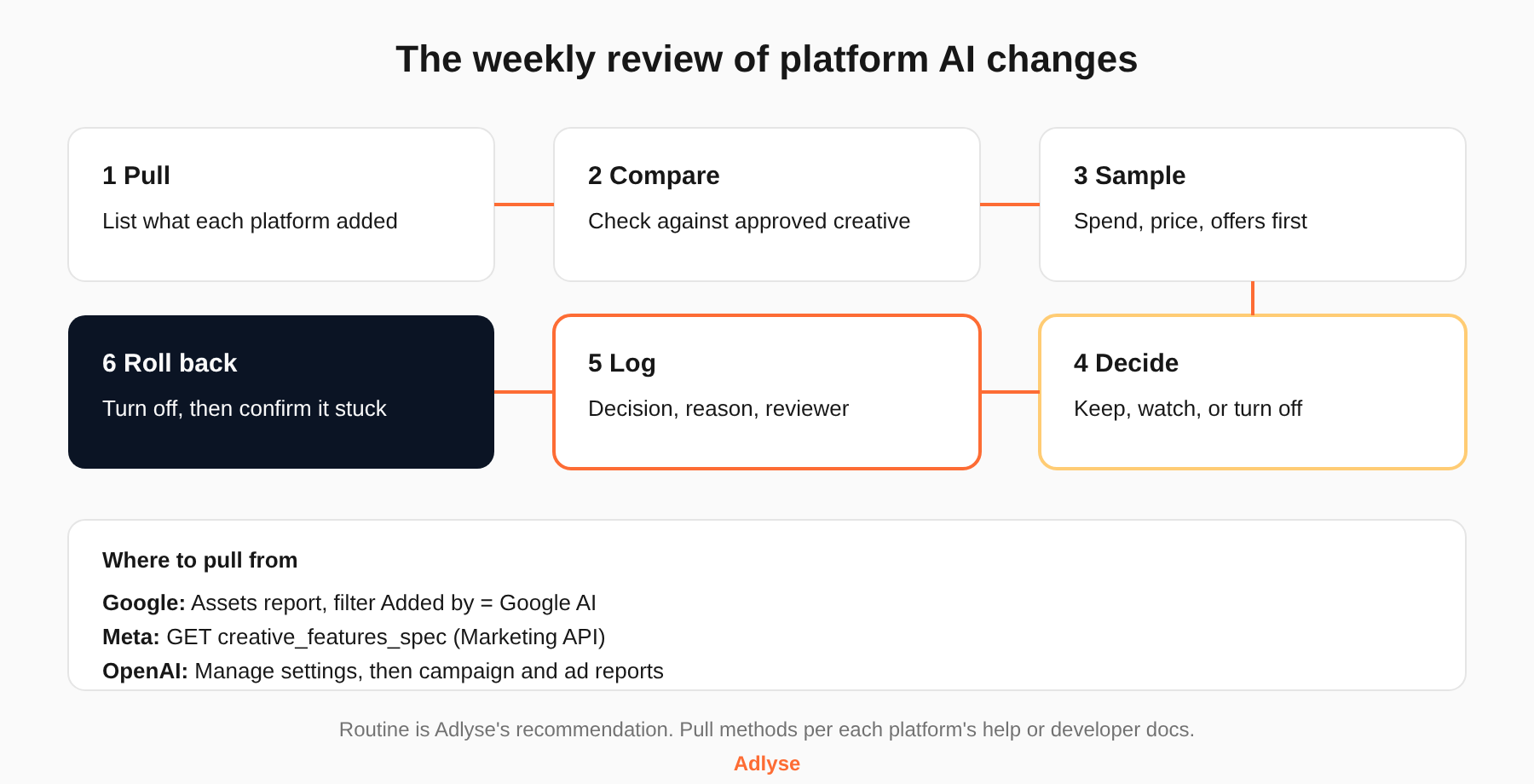
Six steps. Run them in the same order each week.
- Pull the list of platform-made changes.
- Compare each one to the creative you approved.
- Sample where you will look closely.
- Decide: keep, watch, or turn off.
- Log the decision and the reason.
- Roll back what failed, and confirm it stuck.
Budget a fixed block for it. Thirty minutes per account is a reasonable starting point, but that figure is a suggestion, not a benchmark. Adjust after a month of real use.
How do you pull the changes on each platform?
Pull from the source each platform gives you. The method differs.
Google Ads. Go to Assets under the Campaigns menu, add a filter for "Added by," and check "Google AI," per Google's help page. For location assets, seller ratings, and app assets, Google says to use the three-dot menu and select Account level automated assets. For promotions, Google's automated promotions page says to filter by asset type Promotion and check the Added by column, where automated promotions are labeled "Google AI." Google describes "Added by" as a filter on one page and a column on the other, so use whichever your view shows.
Meta. Read the settings, not the creative. For each active ad, a GET request for creative_features_spec returns the configuration, according to Meta's docs. The same docs say features marked OPT_IN but ineligible for the ad setup are removed automatically, so the response shows what actually applies. Meta's docs also support preview requests for individual features. I did not fetch Meta's Business Help pages, so the Ads Manager click path is not covered here.
OpenAI / ChatGPT Ads. Check the enhancement setting first. The help article says enhancements are turned on automatically for new and existing campaigns from the date OpenAI names, that previously disabled settings are kept, and that campaign-specific settings take priority over account defaults. Then review campaign, ad group, and ad reports for impressions, clicks, spend, CTR, and attributed conversions, which the article lists. It does not describe a view of each enhanced version, so ask what you can see rather than assume.
If you run more than one platform, put the pulls in one sheet. Weekly Ops with Agents covers where this fits in a Monday routine.
How do you compare changes to approved creative?
Keep a creative register: one row per ad with the approved headlines, descriptions, images, destination URL, offer, and price. Without it, "compare to approved" is a feeling.
For each platform-made change, check five things:
- Claims. Does it say anything you did not write, such as a discount, a guarantee, or a feature?
- Offer and price. Does it match the live landing page today?
- Destination. Does the URL still go where you intended? OpenAI lists optimized destination URLs among possible changes.
- Brand. Do images, crops, and text fit your guidelines?
- Audience and language. If text is translated, can someone who reads that language confirm it?
A change that fails any of the five is a "turn off" candidate. A change that passes all five and matches your offer is a "keep."
How do you sample without reviewing everything?
Do not try to read every variant. Sort and cut.
- Take everything new in your highest-spend campaigns. Spend is the cost of being wrong.
- Take everything that touches price, offers, or destinations. These carry legal and customer risk.
- Take a handful from the long tail. Pick a few at random so low-spend campaigns still get seen.
- Re-check anything you kept last week and that changed.
The sample size is your call. State it in the log so next week's reviewer can see what was covered and what was not. A rule you can describe in one line gets followed.
How do you decide: keep, watch, or turn off?
Use three outcomes and write the rule down.
- Keep. Passes the five checks. No further action.
- Watch. Passes the checks but you cannot tell if it helps. Set a review date and a metric.
- Turn off. Fails a check, or you cannot verify it.
Be careful with "it performs well." OpenAI's article warns that changes in performance over time do not, on their own, show the effect of enhancements. Google says overall campaign performance may improve even when clicks on a promotion are low. Judging platform AI by a before-and-after chart is the mistake the routine exists to prevent. How to Prove Which Change Drove Performance explains how to test it properly.
What should the log contain?
One row per decision. Include:
- Date and reviewer
- Platform, account, campaign, ad
- What the platform changed (or which setting was on)
- Compared to which approved creative
- Decision: keep, watch, or turn off
- Reason, in one sentence
- Hypothesis and review date, for "watch" items
- Rollback done and confirmed (yes or no)
This is the same record an auditor, a client, or your future self will want. An Audit Trail for AI-Driven Ad Spend lists what a full trail should hold, and AI Autonomy in Ad Spend covers deciding which changes need a human sign-off before they run.
How do you roll back a platform AI change?
Turn off the specific feature at the narrowest level the platform allows, then confirm.
Google Ads. The help page describes turning assets off, not deleting them. Under Assets, open the Associations tab, use the three-dot menu, select Account level automated assets, then Advanced settings, choose the asset to turn off, give a reason, and save. For promotions, the automated promotions page says to open the Automated promotions dropdown in Advanced settings and choose Off.
Meta. Set enroll_status to OPT_OUT for the individual feature. Meta says advertisers can opt out at any time. Music is the exception: the docs say it is set through asset_feed_spec, and opting out means passing audios as empty. Then GET the creative_features_spec again to confirm.
OpenAI. Select "Manage settings" in Ads Manager and turn off enhancements. Because campaign-specific settings take priority over the account default, check both levels. The sources I read describe no way to keep some enhancement types while disabling others.
After any rollback, confirm the setting stuck and note the date in the log. If you roll back a change that was winning, say so in the log and test it properly later.
How does this fit with automation and agents?
The routine works the same whether a person or an agent runs the account. It matters more when an agent is also making changes, because there are then two sources of change to tell apart: the platform's and your own. Keep them in separate columns in the log.
Adlyse executes approved changes across Google, Meta, Microsoft, TikTok, and OpenAI/ChatGPT Ads, and ships each one with a hypothesis, then grades it improved, hurt, or neutral. That covers changes you approve. The review above covers the ones the platform makes by itself. For how the two approaches compare, see Adlyse vs. Platform-Native Automation.
What should you do next?
Build the creative register for your three highest-spend campaigns this week. Then run the six steps once, with a timer. You will find out how long the review really takes and which platform gives you the least visibility. If you want each change you approve to come with a hypothesis and a grade, Adlyse does that. You can read more at adlyse.com.