

Don't turn them off by reflex, and don't leave them on by default. Test each network on its own numbers. In Google Ads, split your results by network, set your data floor in advance, and run the test for at least two full weeks. Since October 2026 you also have a middle option. Google announced on October 14, 2026 that you can mark Search partners and the Display Network as "Low priority" and cap how much budget they get, instead of switching them off.
What are Search partners and Display expansion?
Search partners are non-Google sites and apps in Google's Search Network. Google's help page says ads can show alongside, above, within, or below search results on partner sites, plus on site directory pages, product detail pages, and in YouTube search results and Watch pages. New Search campaigns include them by default.
Display expansion lets a Search campaign also serve on the Google Display Network. Google's help page says it can help you reach additional potential customers on the Display Network. Your Search ads are used to create display ads, and bidding settings carry over where possible.
Both settings live in the campaign's Networks section. Both can move spend away from Google Search itself.
Should you turn them off?
It depends on what the numbers show for your account. Google gives you reasons for caution and reasons for patience.
The case for caution. Google's own page says clicks from partner sites that display and link to products may not always reflect highly targeted traffic. The same page says Google Ads doesn't provide information on the specific website where your ad was shown on the Search Network (Performance Max is the exception it names). You can't audit placements the way you can on Display.
The case for patience. Google's Display Expansion page says campaigns with spare Search budget can deliver up to 15% more conversions at similar CPA to Search. That is Google's claim, and it describes a best case. It is a reason to test, not a result you should expect.
So the honest answer is: turn a network off if it fails your test, and keep it if it passes. Don't decide from a rule of thumb. Your account, your offer, and your conversion quality decide it.
What changed in October 2026?
Google's announcement, written by Tal Akabas of Google Ads and dated October 14, 2026, introduces optional channel prioritization and budget allocation controls. Google's help page says they progressively become available starting October 15, 2026.
How they work, per Google's help page:
- Each channel is "High priority" (the default) or "Low priority". High priority channels get spend first. Low priority channels get what remains.
- On a Low priority channel you can set an optional daily percentage cap. It is calculated against the campaign's average daily budget, and it is best-effort, not a guarantee.
- Setting a Low priority channel to 0% stops spend on it.
- On Search campaigns the channels are Google Search, Search partners, and the Display Network.
- Prioritization has no effect when your campaign isn't limited by budget. Any allocation you set still applies.
Google's announcement says advertisers who opted out of Search partners can use the controls to test them with limits instead of leaving them off. It does not describe a formal test program, and it gives no test design, duration, or eligibility rules. Treat it as a way to run your own test with a lid on the downside.
One date matters for Display expansion. Google's Display Expansion page says that starting February 2027, Search campaigns with Display expansion will automatically transition to channel prioritization, and the current spend allocation setup will go away. Channel spend may shift. To keep today's behavior, set the Display Network to Low priority with a 50% daily allocation. Google also says the Display Network will no longer serve on Search campaigns that use Target Impression Share.
How do you test whether they pay off?
Use the data Google already gives you. Then add your own downstream data.
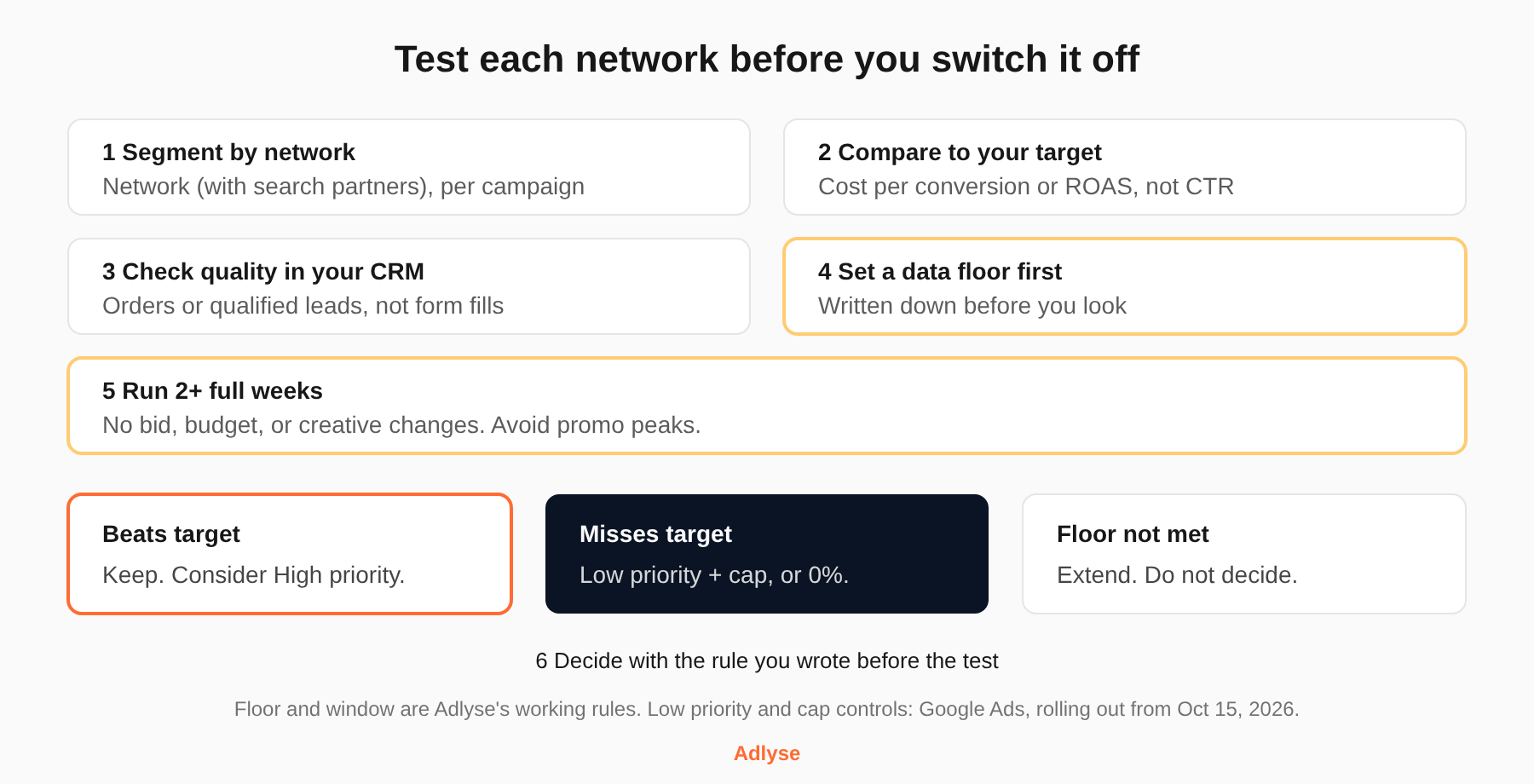
1. Pull the right report. In a Google Ads statistics table, open the segment menu and choose "Network (with search partners)". Google's help page says to use this segment to compare Google Search, search partners, and Display Network performance. Run it per campaign, not per account. Averages across campaigns hide the one that is wasting money. Keep brand and non-brand campaigns apart.
2. Pull these columns. Cost, clicks, conversions, conversion value, cost per conversion, and conversion rate, by network. Then compare each network to Google Search on your target CPA or ROAS, not on clicks or CTR.
3. Check quality outside Google Ads. Platform-reported conversions count what you told the platform to count. Match each network's conversions to your CRM, orders, or qualified leads. A partner click that fills a form is not the same as a customer. For why platform-reported numbers rarely match your own, see ROAS is lying.
4. Set a data floor before you look. Google doesn't publish a minimum for this comparison, so this is Adlyse's working rule, not a Google rule. Pick a floor per network and write it down first. For example: no verdict until a network has at least 30 conversions and at least two full conversion-lag cycles. Use a higher floor if your conversions are cheap and noisy, and lower only if volume is thin and the decision is cheap to reverse. Below the floor, the answer is "not enough data". That is not a "pass".
5. Choose the time window. Run at least two full weeks, and longer if your sales cycle is longer. Do not change bids, budgets, or creative mid-test. Do not straddle a big promotion. If you sell in Q4, finish before the traffic mix changes, or wait. For Q4 spend, see the Q4 and BFCM budget pacing guide.
6. Apply a decision rule. Write it before the test:
| Result vs. your target | Action |
|---|---|
| Network beats target, floor met | Keep it. Consider High priority. |
| Network misses target, floor met | Set Low priority with a small cap, or 0% to stop spend. |
| Floor not met | Extend the test. Do not decide. |
| Mixed (good volume, poor quality in CRM) | Cap it, then re-check in CRM data. |
A segment report is observational. Networks are not randomly assigned, so a network can look good because it catches easy conversions. For a stronger answer, run a controlled test. Google's help page says custom experiments can use these controls, but all channels in an experiment share one priority tier. For the wider method, see Adlyse's guide to incrementality testing.
What should you do before February 2027?
- Find every Search campaign with the Display Network on. Those are the ones that will migrate.
- Decide the setting per campaign. Either set it now, or accept the automatic move. Google's help page says priority settings saved before February 2027 take effect immediately and replace the Display expansion budget behavior.
- Remember the manager-account limit. Google's help page says you can't set channel prioritization from a manager account. Agencies need to set it in each client account or campaign.
- Watch for gaps in rollout. Google says Google Ads API and Editor support is "coming soon", so scripted workflows may lag.
- Log the change. Record the old setting, the new one, and the hypothesis. A change you can't trace is a result you can't trust. For guardrails on automated spend changes, see AI autonomy and ad spend guardrails. For running Google Ads with agents more broadly, see the Google Ads and AI agents guide.
What should you do next?
If you want this test run as routine work rather than a one-off, Adlyse ships every proposed Google Ads change with a hypothesis and grades the result as improved, hurt, or neutral. That makes a network test something you can audit, not just remember.